Release 3.9.4
Release Notes for BotPenguin
The release details are as follows:
1. Onboarding WhatsApp bot using 360 Dialogue
Description: BotPenguin now supports seamless integration with multiple WhatsApp bot providers, including 360 Dialog and WhatsApp Cloud, using the Embedded Signup feature. This enhancement ensures flexibility and convenience for agencies and businesses looking to onboard customers' WhatsApp bots effortlessly.
Key Details:
Multiple Provider Support: Agencies can now choose between providers like 360 Dialog and WhatsApp Cloud, depending on their requirements.
Embedded Signup Process: The integration is powered by an intuitive embedded signup flow, streamlining the onboarding experience for users.
Flexibility and Scalability: This feature allows businesses to switch between providers or use multiple providers simultaneously, ensuring uninterrupted operations.
Benefits:
Reduces the time and effort required for onboarding WhatsApp bots.
Provides agencies with a flexible and scalable solution for managing customer integrations.
Enhances customer satisfaction by ensuring a smooth setup process.
How to Configure 360dialog in the Partner Panel:
Navigate to the Partner Panel:
Access the Partner Panel in your account.
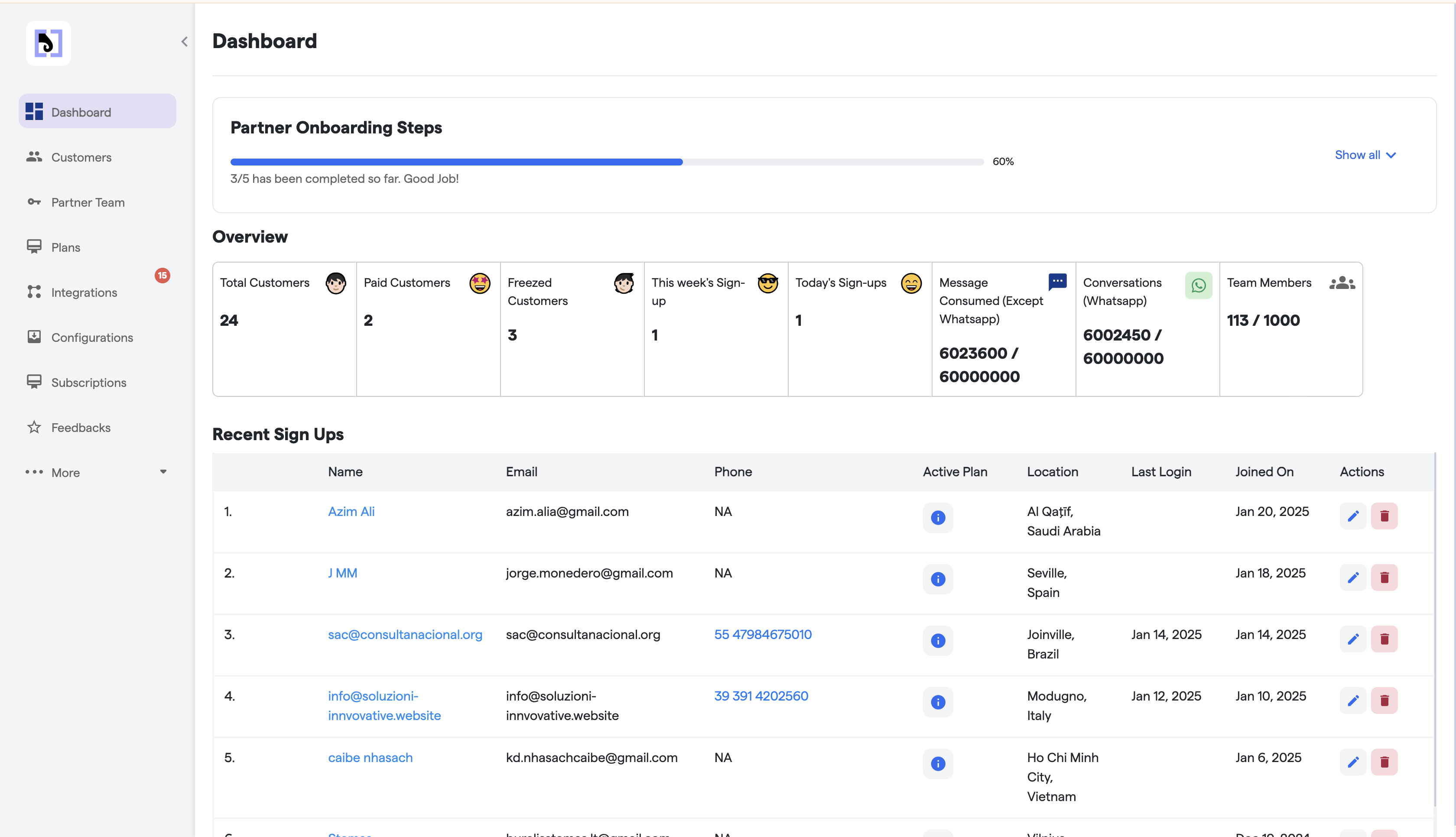
Go to the Integration Section:
Locate and click on the Integration section.
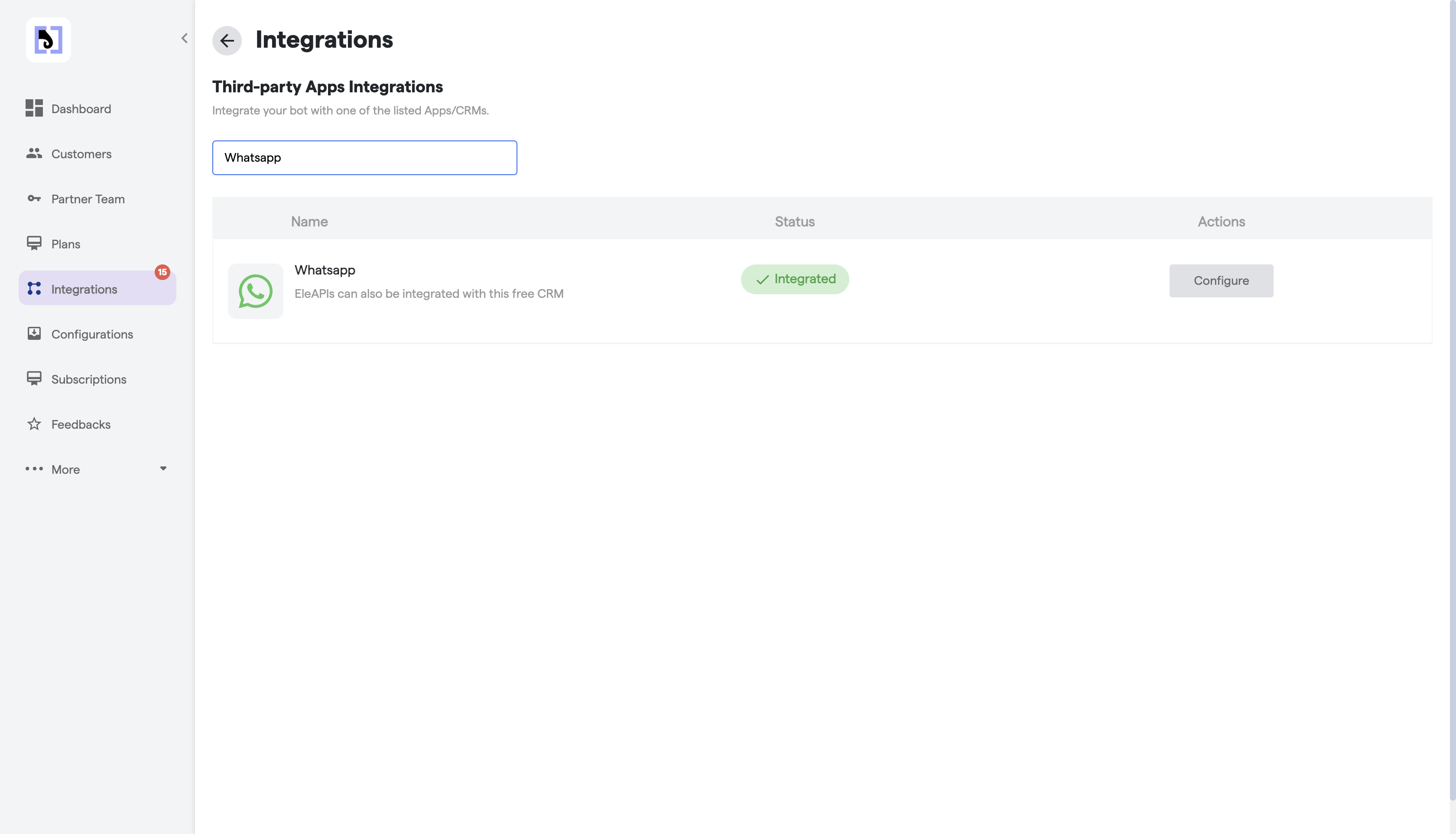
Search for WhatsApp:
Find and select the WhatsApp option.
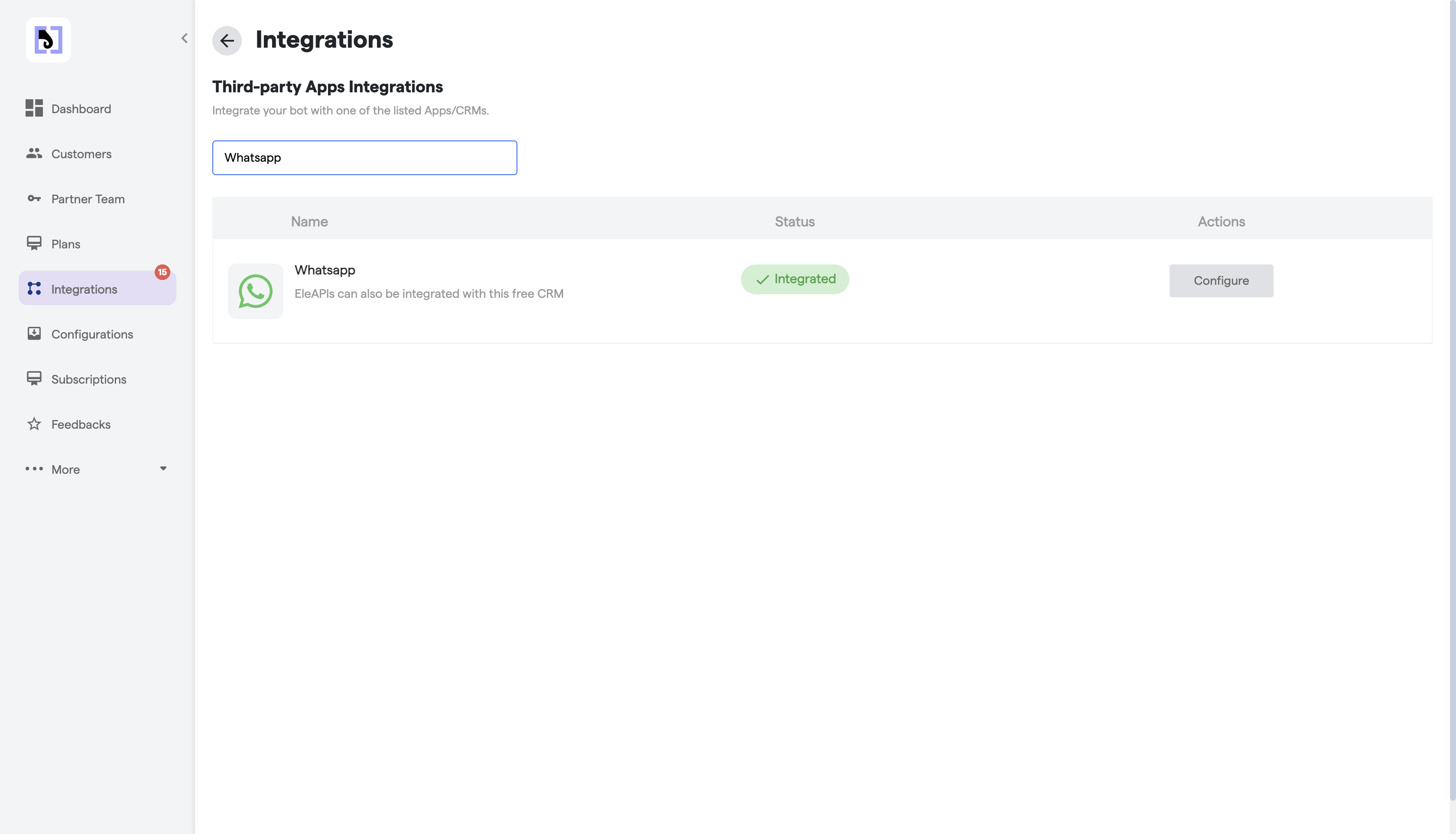
Click on Configure:
Click the Configure button to proceed.
Add a New Configuration:
Click on Add Configuration and fill in the required details:
App Secret
App ID
App Config ID
Access Token
You will need to gather the following details:
From the Meta/Facebook Developer Account:
App Config ID
App ID
App Secret
Access Token
Set Multi-Partner as Yes:
In the configuration, select Multi-Partner as Yes.
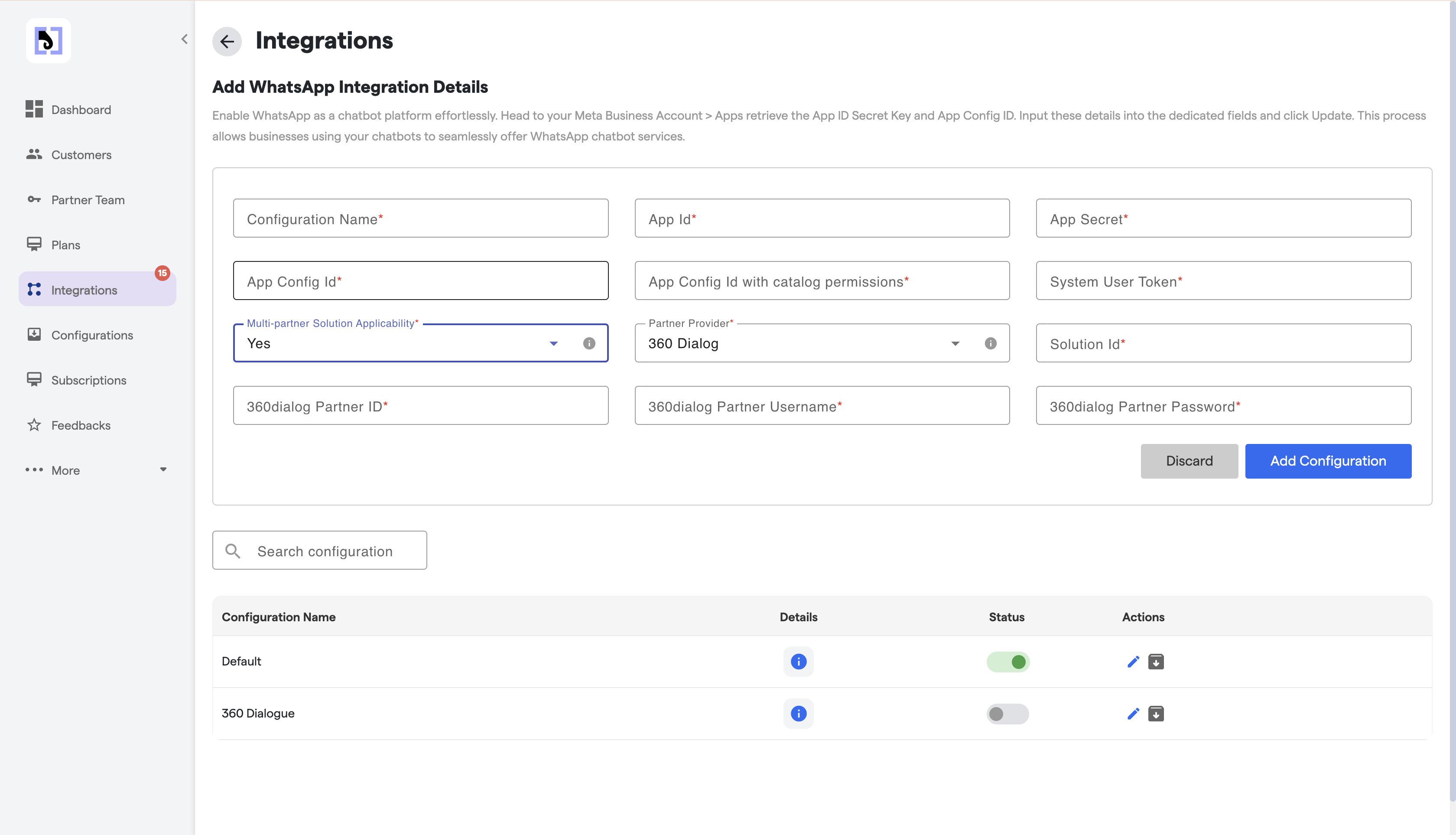
Fill in 360dialog Details:
Provide the following details:
360dialog Solution ID
Partner Id
Partner username
Password
You will need to gather the following details
From the 360dialog Platform:Details like 360dialog Solution ID, Partner Name, and Password can be obtained from the 360dialog platform.
Complete the Configuration:
Click on Add Configuration to save your setup.
2. Rephrase Labels and Error Messages
Description: A new feature has been introduced that allows users to rephrase labels and error messages throughout their chatbot interface. This customization ensures that businesses can align the chatbot language with their brand voice and audience preferences.
Key Details:
Customizable Labels: Modify the default labels in the chatbot interface to match your brand tone.
Error Message Personalization: Change default error messages to provide a more user-friendly and on-brand experience.
User Control: Enable or disable this feature as per your needs, giving you complete flexibility in managing chatbot communication.
Benefits:
Improves the user experience by providing consistent and relatable messaging.
Enables businesses to create a more professional and branded chatbot interaction.
Reduces user confusion by offering clear and customized error messages.
How It Works:
To configure the AI error message, navigate to the Edit Your Chat flow section. In the Chat Components tab, select CTA (Call to Action). Then, go to the Customize section to make the necessary changes.
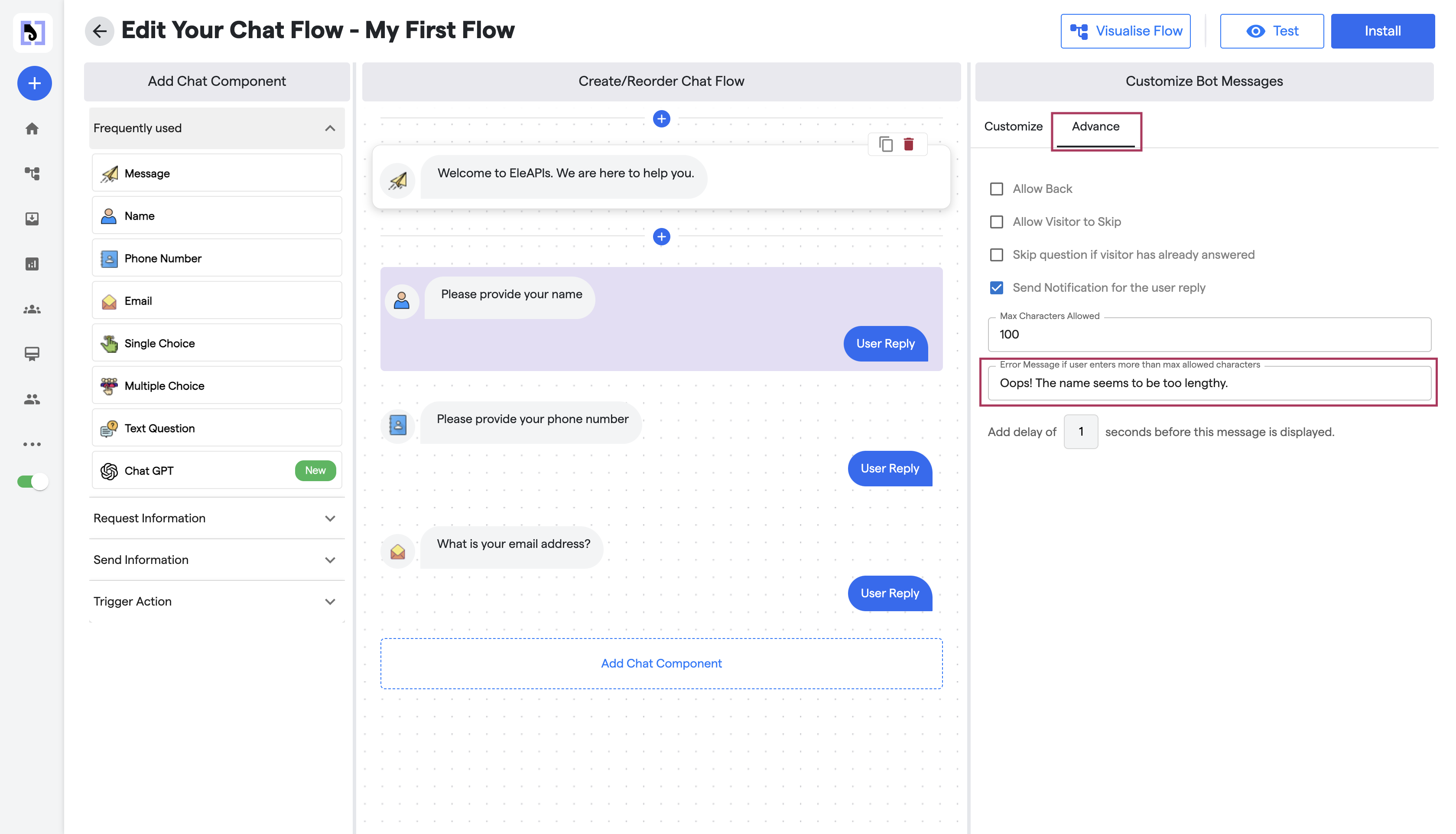
Example Use Cases:
Replace generic error messages like "Something went wrong" with branded messages such as "Oops! It looks like we encountered an issue. Please try again."